Side by Side
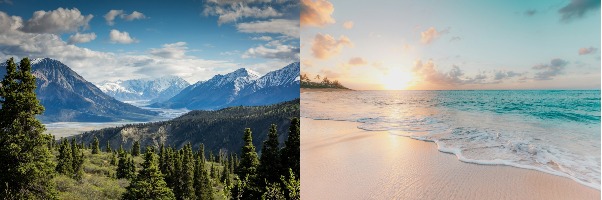
Compare two views or bring separate subjects together without cropping.
Separate moments. One clear picture.
Combine photos side by side, vertically, or in a grid. Free and private.
Drop or paste images · JPG, PNG, WebPAdd your images to see them together.
01 / GET STARTED
Choose JPG, PNG or WebP files, drop them into the upload area, or paste images from your clipboard.
Arrange images horizontally, vertically or in a grid. Drag thumbnails or use the arrow buttons to set their order.
Adjust spacing, outer padding and background. Choose Fit or Fill for grid cells.
Check the output dimensions, choose a format and save your merged image.
02 / THREE WAYS TO COMBINE IMAGES
Compare two views or bring separate subjects together without cropping.
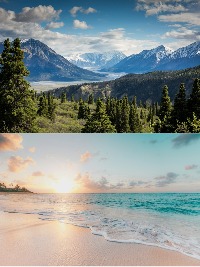
Join a sequence of photos from top to bottom for a continuous reference.
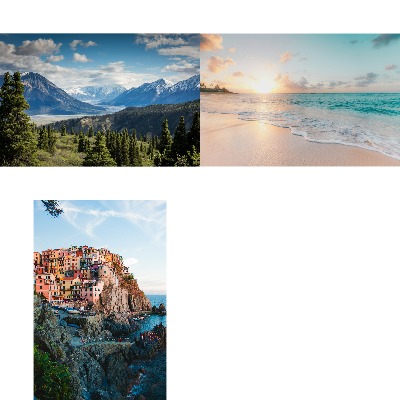
Arrange several studies in equal cells. Fit keeps the complete photo; Fill crops to the frame.
03 / DRAWING FROM MORE THAN ONE SOURCE
Keep a subject, a detail and a scene together in one image. A merged reference can help you compare shapes or collect different views of the same object before you draw.
After downloading, upload the result to Photo Grid to add a drawing reference grid. This tool combines photos; Photo Grid adds guides to a single image, while Instagram Grid Maker splits one image into multiple posts.
04 / IMAGE QUALITY AND PRIVACY
All image processing takes place in your browser. No registration, paid export or watermark is required. Upload JPG, PNG or WebP and download in any of those formats.
Horizontal and Vertical preserve image proportions. Grid Fit shows the whole image with background space when needed; Grid Fill crops centrally to fill each cell. The selected pixel size may enlarge or reduce your sources. Check the actual output dimensions before saving.
The preview is reduced for speed; downloads are rendered separately from your source images. Output is limited to 16 megapixels and 8192 pixels on either side. Very large images can exceed browser memory, especially on phones. Reduce the output size or use smaller sources if an operation fails.
05 / FREQUENTLY ASKED QUESTIONS
Choose two images, select a layout, then download the merged image as PNG, JPG or WebP. No account or watermark.
Yes. Horizontal places images next to each other and matches their heights by default, preserving their proportions.
Choose Vertical to stack images from top to bottom. Their widths match by default. Use the order buttons or drag thumbnails to rearrange them.
Yes, add up to 20 photos. Each file can be up to 20 MB and 40 megapixels, with a combined limit of 60 megapixels.
Images are resized to the pixel size you choose, initially 1000 px per image height, width or grid cell width. Enlarging small images can look soft. PNG avoids additional lossy compression; JPG and WebP have adjustable quality. Export uses the source images, not the reduced preview.
Yes. Enable Transparent background and download PNG to preserve transparent areas. JPG fills them with the selected background color.
No. Image decoding, arranging and exporting happen locally in your browser. No image upload is required.
Yes. Select photos from your device and use the arrow buttons to arrange them. For large files, use fewer images or a smaller output size to stay within your browser’s memory limits.